Introduction
This page provides an introduction to optimization with EMSOptimizer.
Try mathematical optimization with benchmark functions
To try the optimization functionality of EMSOptimizer, run the following command in the EMSOptFree folder.
python emsopt.py run soo_base
This runs single-objective optimization of a benchmark function.
See the Showcase for an example result from this optimization.
Try shape optimization
To try the shape optimization sample, run the following command in the root of the EMSOptFree folder.
python emsopt.py run Dmodel
This runs single-objective topology optimization of the permanent magnet synchronous motor benchmark model, “Dmodel”[1].
See the Showcase for an example result from this optimization.
Running shape optimization requires the related packages.
For details, see the Installation Guide.
EMSOptimizer overview
EMSOptimizer projects
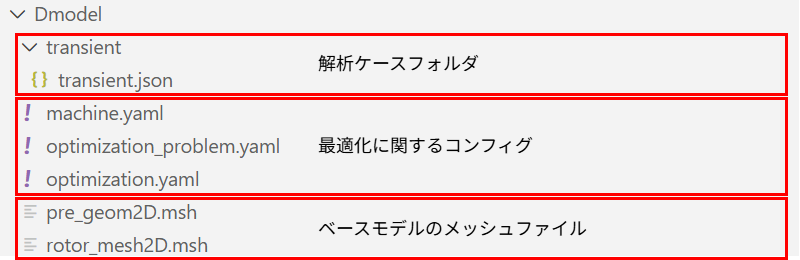
EMSOptimizer manages each optimization case as a project. A project is represented by a folder under project. Project folders contain the following files.
- Optimization configuration files (YAML)
optimization.yaml: Configuration for running the optimization, such as the number of iterationsmahcine.yaml: Configuration related to the target device for shape optimizationoptimization_problem.yaml: Configuration defining the shape-optimization problem, including objectives and constraints
- Mesh files used as the base model for shape optimization (
pre_geom2D.msh,rotor_mesh2D.mshwhen a sliding-motion region is included) - Shape-optimization analysis-case folders
- Each analysis-case folder contains a JSON file with the same name. These are input files for the
pyemsolelectromagnetic simulator package or the auxiliary analysis tooleMachineSim.
- Each analysis-case folder contains a JSON file with the same name. These are input files for the
When optimizing benchmark functions, only optimization.yaml is required.
Since v0.7.0, mesh files can also be placed inside shape-optimization analysis-case folders. This allows different mesh resolutions for different analysis cases, although physical IDs and similar information must be consistent across all meshes.
If a mesh is not placed in an analysis-case folder, the mesh in the project folder is used for all cases as before.
Several example projects are already included in the project folder. Dmodel, used in the introductory example, is one of them.
The figure below shows the actual structure of the Dmodel project. pre_geom2D.msh and rotor_mesh2D.msh are the stator and rotor mesh files, respectively. The transient analysis case is also included.
To run optimization for a project, execute the run command as follows.
python emsopt.py run {プロジェクト名}
Basic optimization workflow
The basic workflow for optimization with EMSOptimizer is as follows.
- Create a new project folder under the
projectfolder, or clone an existing project with thecp_projcommand from the CLI. - For shape optimization, place the mesh files and analysis-case folders in the project folder.
- For shape optimization, configure
machine.yamlaccording to the mesh files and analysis cases. - For shape optimization, define the optimization problem to solve (for example, maximizing average torque) in
optimization_problem.yaml. - Configure the optimization method and other settings in
optimization.yaml. - Optionally create a study with the
mk_studycommand. - Run the optimization with the
runcommand from the CLI. - After optimization finishes, use the
checkcommand to review the results if needed.
Since v0.7.0, EMSOptimizer has supported multiple studies (units for managing optimization settings) within a project.
Results are saved in units called runs for each optimization trial in a study. The batch_run command can also execute the same study multiple times as a batch.
See User Guide > Study control and result review for details.
Try it yourself
We begin by cloning a project with the cp_proj command.
For example, to run Dmodel optimization as a separate project, clone the Dmodel project with the following command.
python emsopt.py cp_proj Dmodel NewDmodel
The copied project is automatically created in the project folder.
Configure the project by editing the files in the NewDmodel project folder.
For example, in optimization.yaml, change the value of level_set_function > kwargs > sigma from 0.0013 to 0.0010 as follows.
This produces more complex changes in the resulting motor shape.
level_set_function:
  name: ngnet
  kwargs:
    sigma: 0.0010
    design_region: [[0.008, 0.0275], [0, 45.0]]
    coordinate: Polar
Specifically, the value of sigma corresponds to the standard deviation of each Gaussian basis function composing the NGnet [3] that defines the rotor shape.
By default, the basis functions are automatically placed to fill the design_region.
See User Guide > LevelSetFunction > NGnet for details.
To run the optimization, execute the run command.
python emsopt.py run NewDmodel
When the run command starts the optimization, the GUI launches by default so that you can monitor progress.
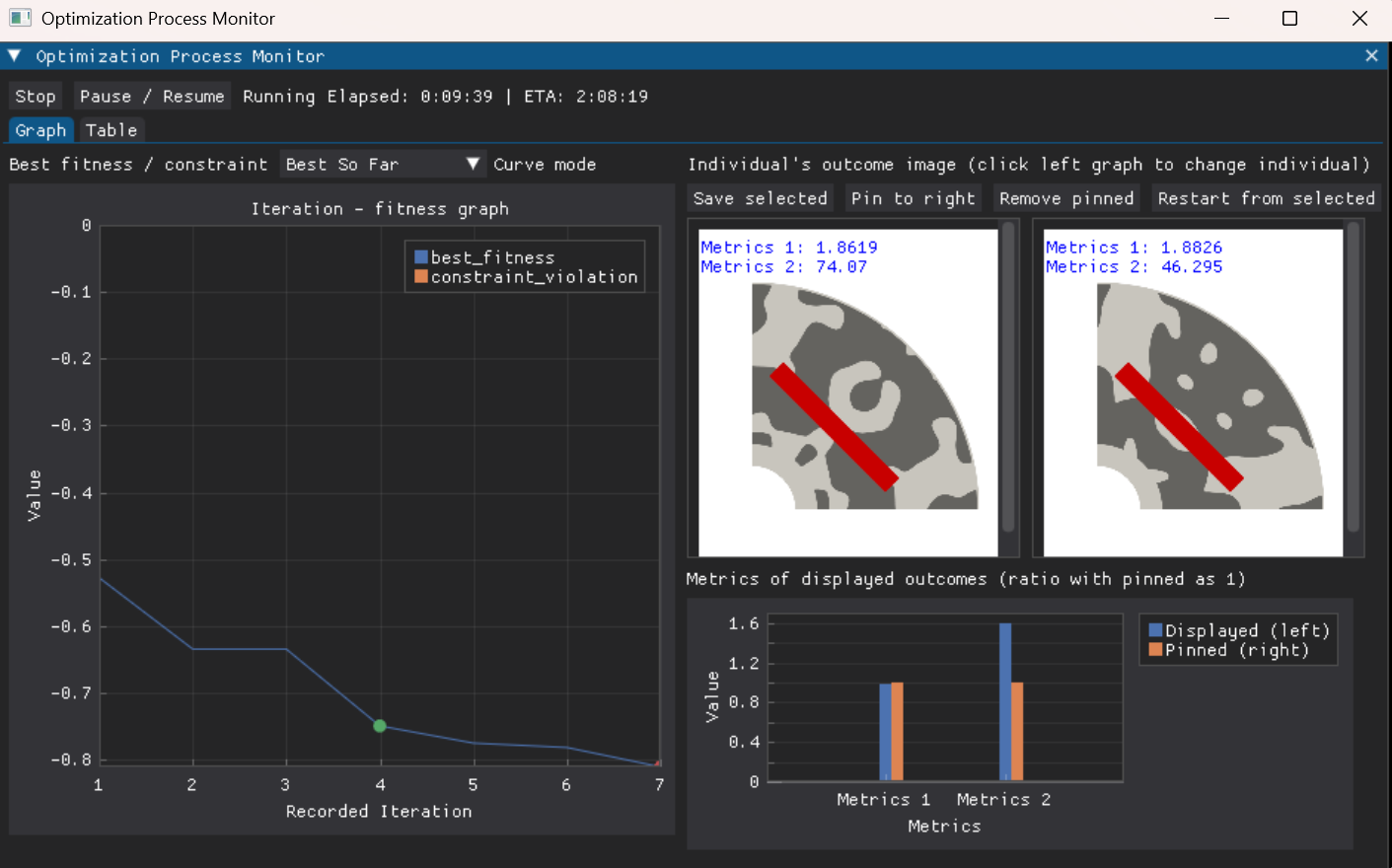
To disable the GUI, open optimization.yaml and set enable_progress_gui to False.
For details about other optimization settings, see User Guide > Optimization settings.
The optimization finishes when the configured number of iterations has elapsed or when it is stopped from the GUI. The GUI remains interactive after completion; close it to terminate the process completely.
The GUI can also be launched after the process ends with the check command. This is mainly useful for reviewing completed optimization runs.
python emsopt.py check NewDmodel
GUI
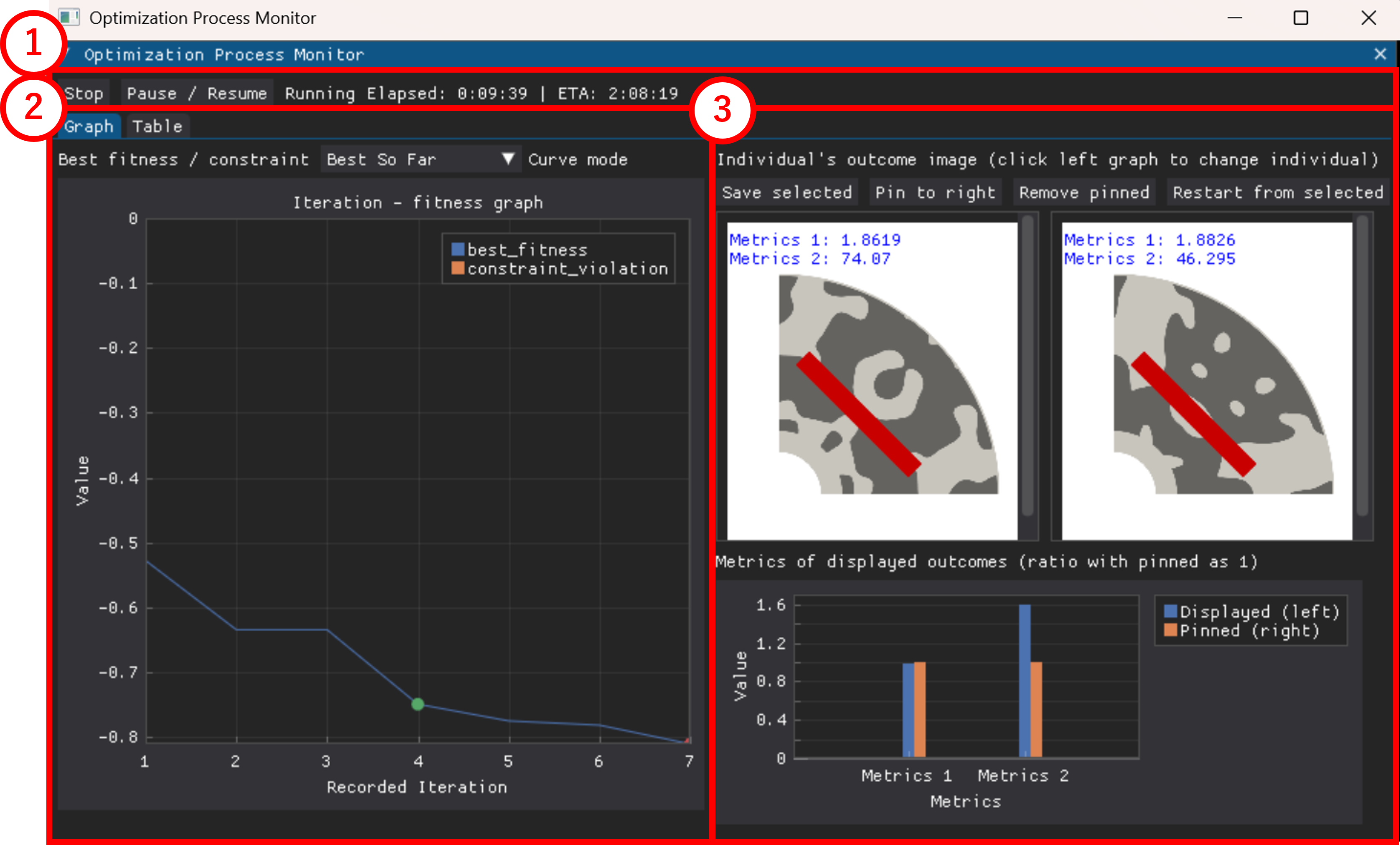
① Optimization control panel.
Stop: Stop optimizationPause / Resume: Pause or resume optimization
Stopping and pausing take effect when the current optimization iteration finishes. To interrupt the calculation immediately, press Ctrl+C from the CLI, although this may damage the working directory and related files.
② Optimization-progress graphs.
Graphtab: Displays an optimization-iteration versus best-evaluation-value graph for single-objective optimization, and a Pareto front for multi-objective optimization. Click the graph to select an individual and display its corresponding shape image in ③.
For single-objective optimization, the default mode, "Generation Best," plots the best individual in each iteration across all iterations. You can switch the combo box above the graph to display "Best So Far," which plots the best individual found up to each iteration.
For multi-objective optimization, the Pareto front is plotted using two objective values on the vertical and horizontal axes. The axes can be switched with the combo boxes above the graph.
Tabletab: Displays the individuals shown in the graph as a table. Click a column name to sort individuals by a particular objective value. Click a table's "Select" cell to select an individual and display its corresponding shape image in ③.Responce Surfacetab: Displays a response surface when one is available. See User Guide > Optimization settings and the IPM8P48S surrogate-model example for details.
③ Shape-image window. The shape selected in ② is displayed in the left window together with the function values registered in optimization_problem.yaml > other_metrics. For single-objective optimization, the best shape at each iteration is displayed automatically.
Save selected: Saves the selected individual's image and information in theprojectfolder.Pin to right: Pins the image in the left window to the right window.Remove pinned: Removes the image from the right window.Restart from selected: Restarts optimization from the selected individual. Available only after optimization has finished.
For details about restarting, see User Guide > Optimization settings.
④ Comparison-metrics graph. The other_metrics values for the shape shown in ③ are displayed as a bar graph. The graph shows ratios relative to the function values of the shape in the right window, which are set to 1. If no shape is in the right window, all metrics are displayed as 1.
For other_metrics values and optimization-problem settings, see Getting Started > Optimization-problem settings.